

A visitor reaches your pricing page, tries to find an answer, then leaves. An email survey sent the next day rarely captures what blocked them, and a generic contact form provides little page-level context.
A customer feedback widget gives visitors a lightweight way to flag friction while the detail is fresh. Cajobo brings that feedback into the same customer-support environment as conversations and self-service content.
Customer feedback widget quick answer
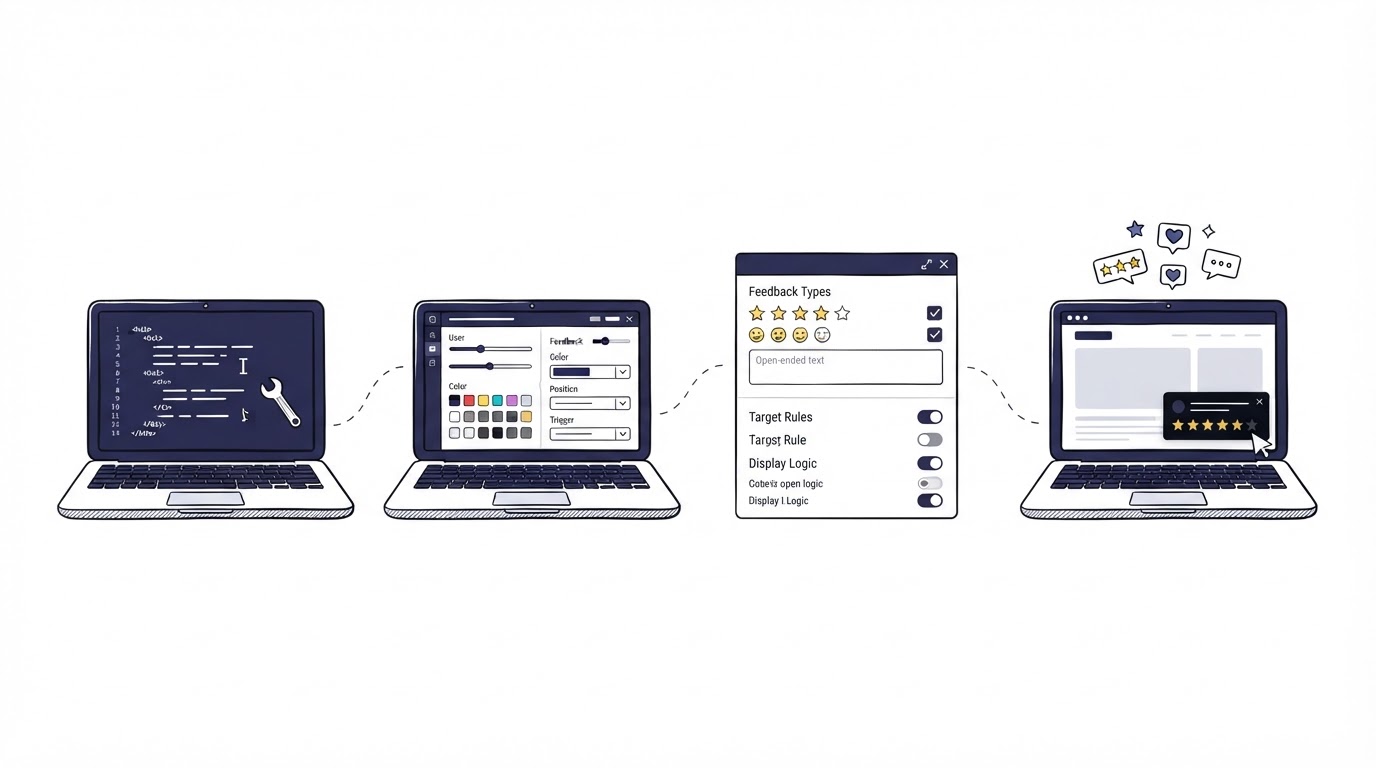
Set up an embedded feedback widget with this workflow:
- Choose one high-intent page or journey where visitor feedback can change a real decision.
- Ask one short, specific question that matches the page's job.
- Capture page context and request only the contact details needed for follow-up.
- Review submissions on a fixed cadence, assign an owner, and close the loop with the customer.
Why a customer feedback widget captures better website feedback
Website feedback has a short shelf life. A customer who cannot understand an export setting can describe the issue accurately while looking at the export screen. A survey delivered later asks them to reconstruct the moment from memory.
The strongest placement sits close to a meaningful action: publishing a post, completing checkout, reviewing plan details, reading a support article, or using a feature for the first time. Each location supports a different question and a different decision.
Consider an illustrative SaaS product called Northstar Reports. Its team sees visitors arrive at /reports/export, open the export settings, and leave before downloading a file. The team adds a small feedback entry point on that page with the question: “What would make exporting this report easier?”
One response says: “I need dates in the file to match the account time zone.” That is actionable. The URL identifies the affected workflow, and the wording points the product team toward a specific setting or explanation.
A customer feedback widget performs particularly well when the team needs to learn about:
- Confusing labels, workflows, or page content
- Missing options during a high-value task
- Obstacles in onboarding or plan selection
- Gaps in support documentation
- Repeated requests that deserve product review
The widget needs a clear purpose. Place it where a response can influence a content change, support process, or product decision.
Compare customer feedback widgets with other collection methods
Every collection method produces a different kind of evidence. Use the channel that matches the decision you need to make.
| Collection method | Best moment to ask | Typical response depth | Page or task context | Best use |
|---|---|---|---|---|
| Embedded customer feedback widget | During a website visit or product task | Short and specific | Strong | Finding friction on a page or workflow |
| Email survey | After a milestone or support interaction | Moderate | Limited unless linked to event data | Measuring sentiment after a defined experience |
| Live chat | When a visitor wants immediate help | Detailed conversation | Strong | Resolving an active question |
| Contact form | When a visitor has a deliberate request | Moderate to detailed | Variable | Sales, support, or general inquiries |
| User interview | Before a major product or positioning decision | Deep | Depends on the session | Understanding motivations and language |
For Northstar Reports, an email survey could reveal that export satisfaction is low. The embedded widget exposes the reason behind the score and identifies the page where the issue appears. The two methods can work together: use the widget for in-the-moment discovery, then follow up through a survey or interview when a pattern needs deeper investigation.
Live chat serves a separate operational need. A visitor who needs an immediate answer should be able to start a conversation with the team. Read our guide to live chat software for SaaS teams for practical guidance on handling those conversations. A widget can also surface an issue that deserves a knowledge-base article. See how to plan that content in our guide to knowledge base software for SaaS.
How to set up a customer feedback widget step by step
1. Choose the page and decision first
Start with a page where improvement has a clear owner. Export the last 90 days of support conversations, product feedback, and page analytics for that journey. Look for a repeated hesitation, a recurring question, or a drop-off after a key action.
For Northstar Reports, the team chooses /reports/export because support receives several questions about date formats and exported values. The owner is the product manager responsible for reporting. That ownership prevents submissions from sitting in an unreviewed queue.
Avoid placing the widget across every page on day one. Begin with one journey, learn what response quality looks like, then expand to the next relevant page.
2. Ask one question visitors can answer quickly
Broad prompts invite broad answers. “Share your feedback” may produce useful notes, though it gives the visitor little direction. A page-specific prompt creates clearer input.
Use the language of the task in front of the visitor. On Northstar Reports' export page, “What would make exporting this report easier?” keeps the response focused on the actual workflow. On a pricing page, ask what information is missing for a decision. On a help article, ask whether the article solved the problem.
Keep any optional comment field close to the initial response. A simple sentiment control can identify direction, while a follow-up field explains it. Readers with accessibility needs must be able to operate every control by keyboard and understand its label. The W3C Web Content Accessibility Guidelines provide the relevant standards for labels, focus order, contrast, and keyboard access.
3. Capture context while respecting privacy
The most useful submission combines a comment with enough context for the team to investigate. At minimum, retain the page URL, page title, date, and the prompt shown. Add product area or account context only when your implementation and privacy policy support it.
Northstar Reports initially asks for a full explanation and an email address before allowing a submission. Responses fall because visitors face too much effort at a moment of frustration. The team changes the widget to accept the comment first and makes contact details optional. This produces more qualitative input while still allowing follow-up when a visitor chooses to identify themselves.
Request only data that serves the follow-up or investigation. Make the collection purpose clear and point to the applicable privacy information. Organizations serving people in the EU should also apply the European Commission's data-protection principles, including purpose limitation and data minimization.
4. Review, decide, and respond
Set a regular review time before publishing the widget. Weekly works for many teams; a high-traffic journey may require a shorter cycle. Read new comments together with the page context, group recurring themes, and record the next action.
Northstar Reports receives several variants of the time-zone complaint. The reporting owner chooses to add a time-zone selector to the export settings and updates the related support article. A support teammate replies to visitors who supplied an email address. That final response turns feedback collection into a visible customer-care practice.
Treat every response as one of three work types: a support request, a content gap, or a product improvement signal. This classification helps the right team act quickly.
Embedded feedback widget mistakes that reduce response quality
A widget can create a noisy backlog when it is deployed without a decision process. Watch for these common problems.
First, avoid a vague prompt on a page with a specific task. A question about the current task yields feedback a team can use.
Second, keep the experience lightweight. Long mandatory forms discourage people at the exact moment you need their view. Ask for one useful response, then make any extra detail optional.
Third, connect the widget to a real review routine. A submission queue without ownership slowly loses value. Record the theme, responsible person, expected action, and date reviewed.
Finally, avoid covering essential navigation or support controls. A customer feedback widget should remain easy to find without interrupting checkout, reading, or form completion.
How Cajobo turns website feedback into support work
Teams often collect feedback in one system, customer questions in another, and help content in a third. Cajobo is built to keep those customer signals together so the feedback can lead to an actual response or improvement.
Here is how the Northstar Reports workflow looks inside Cajobo:
- Start in Cajobo Feedback and create the feedback collection point for the export journey.
- Use the prompt developed for that page, then embed the customer feedback widget where visitors work with export settings.
- Review incoming feedback in Cajobo with the page-specific question and response as the starting point for triage.
- Send a support-related issue to the team handling conversations, or use a recurring question to improve the knowledge base.
- Keep the feedback discussion connected to the customer-support workflow, then record the product or content decision that follows.
This approach is especially useful when a quick comment exposes a broader support need. A visitor who says “I cannot find the right export format” may need a direct answer today and clearer guidance for future visitors. Cajobo's live chat and knowledge base give teams places to handle both parts of that work. For a fuller view of the connected workflow, see the Cajobo customer support platform guide.
Customer feedback widget FAQ
Where should I place a customer feedback widget on my website?
Place it on pages where visitors make a decision, complete a task, or commonly encounter confusion. Good starting points include pricing pages, onboarding screens, feature settings, checkout steps, and high-traffic help articles. Begin with one page that has a known question or drop-off pattern.
What should a website feedback widget ask?
Ask one question tied to the page's purpose. Examples include “What information is missing here?”, “Did this article solve your problem?”, and “What made this step difficult?” The wording should help a team decide what to change after reading the response.
Should I use feedback widgets or live chat?
Use a feedback widget to collect quick observations that visitors can submit on their own time. Use live chat for real-time questions that require a conversation. Offer both when a visitor may need immediate help and the team also wants to learn from recurring friction.
How often should a team review website feedback?
Review it at least weekly for a low-volume page. Review high-traffic or business-critical journeys more frequently. Set an owner for each collection point and track what happens after recurring feedback appears.
How do I know whether the widget is working?
Look for responses that identify a page, task, or customer need clearly enough to support an action. Track themes over time, the number of changes informed by feedback, and whether related support questions decline after those changes. Expand the widget only after the first placement produces usable patterns.
A customer feedback widget earns its place when the team can turn a short response into a support reply, clearer documentation, or a product improvement. Start with one high-value journey, set a specific prompt, and use Cajobo to keep the response close to the work it creates. Read next: How to Measure Customer Satisfaction With One-Tap Feedback.